Keycron Keyboards
Keychron Mechanical Keyboards Reference Guide
This guide details operating modes, Bluetooth pairing, RGB/LED light controls, default hotkeys, QMK/VIA customization, and Sway WM configuration for Keychron Mechanical Keyboards (K Series, Q Series, V Series, Pro Series).
1. Bluetooth Pairing & Switch Control
Toggle Switches (Side / Rear Panel)
Alt and Command to Win. Uses Layers 0 & 1 in QMK/VIA.
Win/Android: Standard Windows/Linux layout. Uses Layers 2 & 3 in QMK/VIA.
Bluetooth Device Pairing & Switching
Keychron keyboards support up to 3 host devices:
Fn + 1, Fn + 2, or Fn + 3 for 4 seconds until the number key LED flashes rapidly. Select Keychron K/Q Keyboard in your host's Bluetooth menu.
Switching Devices: Short-press Fn + 1, Fn + 2, or Fn + 3 to switch between paired hosts (takes ~1–2 seconds to re-connect).
Auto-Sleep / Power Saving:
Fn + S + O for 4 seconds (LED flashes to confirm).
Re-enable Auto-Sleep: Hold Fn + S + O for 4 seconds.
2. LED Light & Backlight Controls
Keychron keyboards feature dedicated hardware keys and Fn shortcuts to control RGB/White backlighting:
Basic Backlight Controls
Fn + Light Key (or Fn + Tab on select models).
Change Light Effect Pattern: Press Fn + Q or short-press the Light Effect Key to cycle through 18+ RGB animation modes.
Change Backlight Color: Press Fn + E or Fn + Right Arrow / Fn + Left Arrow to cycle through static colors.
Brightness & Speed Adjustments
Fn + W or Fn + Up Arrow (or Fn + F6 in Windows mode).
Decrease Brightness: Fn + S or Fn + Down Arrow (or Fn + F5 in Windows mode).
Increase Effect Animation Speed: Fn + = (Plus key) or Fn + D.
Decrease Effect Animation Speed: Fn + - (Minus key) or Fn + A.
3. Core Hotkeys & Functional Shortcuts
Multimedia & Function Keys (F1 – F12)
Fn + F1..F12 for standard F keys.
Windows Mode: Top row defaults to standard F1..F12 keys. Press Fn + F1..F12 for multimedia controls.
Toggle Function Key Mode: Hold Fn + K + C for 4 seconds to swap top-row default behavior between Media keys and F1..F12.
System Shortcuts & Troubleshooting
Fn + J + Z for 4 seconds until the backlight flashes 3 times.
Battery Level Indicator: Press Fn + B. The backlight green/red bar indicates remaining battery percentage.
Windows Key Lock: Press Fn + Win to disable the Windows Start key during gaming.
4. QMK / VIA Customization
Keychron Q Series, V Series, and Pro Series models support real-time remapping via VIA:
/dev/hidraw*, create /etc/udev/rules.d/50-keychron.rules:
KERNEL=="hidraw*", ATTRS{idVendor}=="3434", MODE="0666", TAG+="uaccess"
sudo udevadm control --reload-rules && sudo udevadm trigger
5. Sway WM / Linux (Arch & Debian) Configuration
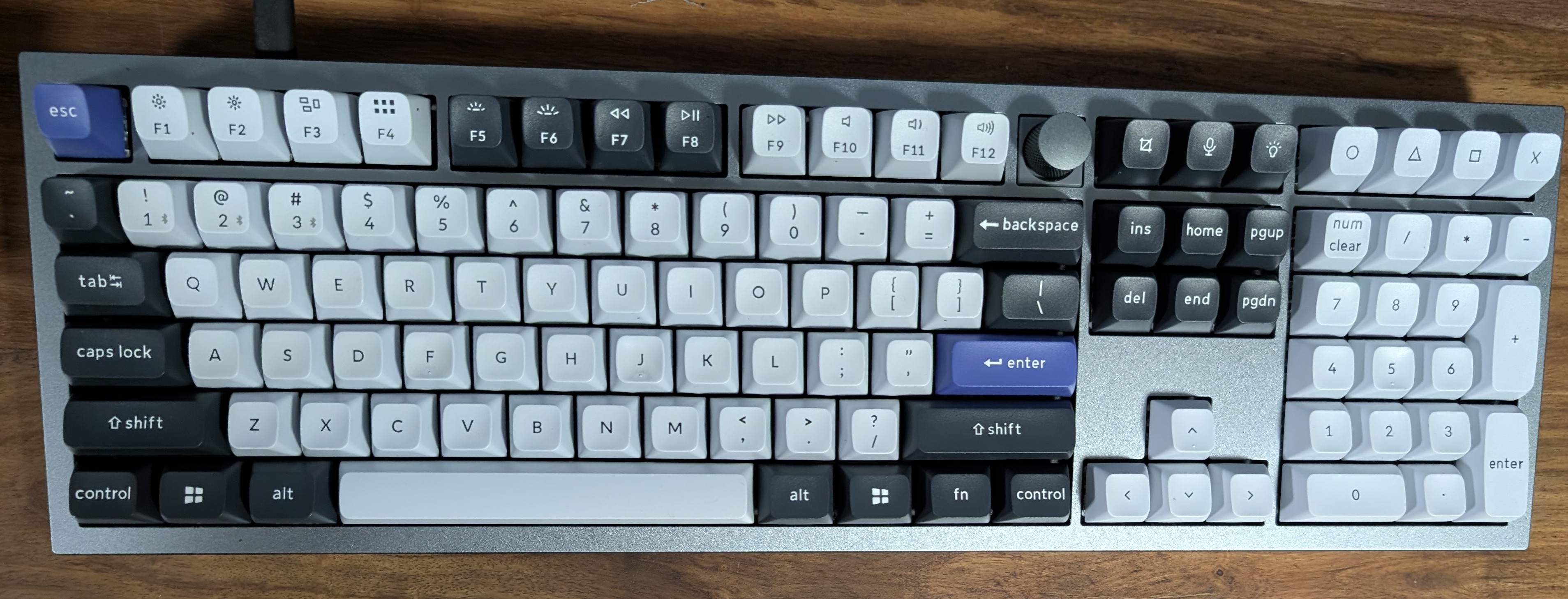
This section covers setting up Keychron keyboards, function keys (F1–F12), rotary knobs, and custom buttons under the Sway window manager on Arch Linux and Debian / Ubuntu.
5.1 Required Package Installation
Install the recommended utilities for audio, brightness, media control, screenshots, and event debugging:
Arch Linux:
sudo pacman -S --needed \
  wireplumber \
  pipewire-audio \
  brightnessctl \
  playerctl \
  grim \
  slurp \
  wl-clipboard \
  wev
Debian / Ubuntu:
sudo apt update && sudo apt install -y \
  wireplumber \
  pipewire-audio-client-libraries \
  brightnessctl \
  playerctl \
  grim \
  slurp \
  wl-clipboard \
  wev
5.2 Kernel Apple/Keychron Driver Options (hid_apple)
If top-row function keys trigger media keys instead of standard F1–F12 (or vice-versa), configure the hid_apple kernel module:
Create or edit /etc/modprobe.d/hid_apple.conf:
options hid_apple fnmode=2
fnmode=2: Top row defaults to standard F1–F12 keys. Hold Fn for media functions.
fnmode=1: Top row defaults to media functions. Hold Fn for standard F1–F12.
Regenerate initramfs and reboot:
sudo mkinitcpio -P
sudo update-initramfs -u
5.3 Debugging Key Signals (wev)
To identify keycodes emitted by the rotary knob or custom PlayStation/macro buttons under Wayland/Sway:
wev
Press or turn the control while focusing the wev window. Note the reported XKB keysym name (e.g. XF86AudioRaiseVolume, XF86AudioPlay) or numeric keycode.
5.4 Modular Sway Configuration (include)
Sway natively supports the include directive to organize keybindings into dedicated configuration files.
Add the include directive in ~/.config/sway/config:
include config.d/*
Create ~/.config/sway/config.d/keychron.conf and populate it with your keyboard bindings:
# ==============================================================================
# Keychron Keyboard & Function Key Bindings for Sway
# Location: ~/.config/sway/config.d/keychron.conf
# ==============================================================================

# --- Volume & Rotary Knob Controls ---
# Knob Clockwise: Volume Up
bindsym XF86AudioRaiseVolume exec wpctl set-volume @DEFAULT_AUDIO_SINK@ 5%+
# Knob Counter-Clockwise: Volume Down
bindsym XF86AudioLowerVolume exec wpctl set-volume @DEFAULT_AUDIO_SINK@ 5%-
# Knob Click: Mute Audio
bindsym XF86AudioMute        exec wpctl set-mute @DEFAULT_AUDIO_SINK@ toggle
# Microphone Mute (if mapped)
bindsym XF86AudioMicMute     exec wpctl set-mute @DEFAULT_AUDIO_SOURCE@ toggle

# --- Media Playback Controls ---
# Play / Pause Toggle
bindsym XF86AudioPlay        exec playerctl play-pause
bindsym XF86AudioPause       exec playerctl pause
# Next Track
bindsym XF86AudioNext        exec playerctl next
# Previous Track
bindsym XF86AudioPrev        exec playerctl previous
# Stop Playback
bindsym XF86AudioStop        exec playerctl stop

# --- Display & Keyboard Backlight Brightness ---
# Screen Brightness Up / Down (F1 / F2 or dedicated keys)
bindsym XF86MonBrightnessUp   exec brightnessctl set +5%
bindsym XF86MonBrightnessDown exec brightnessctl set 5%-

# Keyboard LED Backlight (Hardware controlled or software via brightnessctl)
bindsym XF86KbdBrightnessUp   exec brightnessctl --device='*kbd*' set +10%
bindsym XF86KbdBrightnessDown exec brightnessctl --device='*kbd*' set 10%-

# --- Screenshots & Special Function Keys ---
# Screenshot Key / Keychron Camera Key
bindsym Print                      exec grim -g "$(slurp)" - | wl-copy
bindsym XF86SelectiveScreenshot    exec grim -g "$(slurp)" - | wl-copy

# App Launchers / Search / Calculator Keys
bindsym XF86Calculator             exec foot -e python3
bindsym XF86Search                 exec rofi -show drun
bindsym XF86Launch1                exec rofi -show drun

# --- Custom Knob & PlayStation / Macro Buttons (Remapped via VIA) ---
# If remapped in VIA to send unused function keys (F13 - F24):
# Example: Rotary Knob mapped to Screen Brightness (F13/F14)
bindsym F13 exec brightnessctl set 5%-
bindsym F14 exec brightnessctl set +5%

# Example: PlayStation / Novelty Macro Buttons (F15 - F18)
bindsym F15 exec foot
bindsym F16 exec rofi -show drun
bindsym F17 exec swaymsg workspace 1
bindsym F18 exec swaymsg workspace 2
5.5 Modifier Combinations with the Rotary Knob
You can bind modifier keys (Ctrl, Alt/Mod1, Shift, Super/Mod4) combined with knob rotation or press in ~/.config/sway/config.d/keychron.conf:
# --- Unmodified Knob Turn: Volume ---
bindsym XF86AudioRaiseVolume exec wpctl set-volume @DEFAULT_AUDIO_SINK@ 5%+
bindsym XF86AudioLowerVolume exec wpctl set-volume @DEFAULT_AUDIO_SINK@ 5%-
bindsym XF86AudioMute        exec wpctl set-mute @DEFAULT_AUDIO_SINK@ toggle

# --- Alt + Knob Turn: Screen Brightness ---
bindsym Mod1+XF86AudioRaiseVolume exec brightnessctl set +5%
bindsym Mod1+XF86AudioLowerVolume exec brightnessctl set 5%-

# --- Ctrl + Knob Turn: Track Prev / Next ---
bindsym Control+XF86AudioRaiseVolume exec playerctl next
bindsym Control+XF86AudioLowerVolume exec playerctl previous
bindsym Control+XF86AudioMute        exec playerctl play-pause

# --- Shift + Knob Turn: Switch Sway Workspaces ---
bindsym Shift+XF86AudioRaiseVolume exec swaymsg workspace next
bindsym Shift+XF86AudioLowerVolume exec swaymsg workspace prev
Reload Sway config after editing:
swaymsg reload
Keyboads
Keychron Q6 Pro 2026-08-07 Banana Switches Office